Divi Theme Installation Failed: Diagnose the Error
The short version
A Divi theme installation failed message can have several causes. Start with the exact error and server logs. Common checks include: you uploaded the whole Elegant Themes download instead of the Divi.zip inside it; the zip is larger than the upload ceiling your PHP configuration allows; PHP ran out of memory or execution time while unpacking; the wp-content/themes folder is not writable; you installed a Divi child theme before Divi itself; or Divi installed correctly and it is the updates that are failing, because the API key is not saved.
Read the error message before changing anything. WordPress tells you which of the six it is, and the fix for each takes about two minutes. The one that costs real time is the last one, and it is not an installation problem at all.
If WordPress says Divi theme installation failed, the theme file is fine and your licence is fine. What has failed is one specific step of WordPress’s own upload-and-unpack routine, and WordPress names the step in the error text. This page maps every error message Divi produces during installation to the thing that actually caused it and the shortest fix, plus the Divi 5-specific installation failures that did not exist before February 2026 and that most guides on this topic still predate.
Match the next step to the actual error
| Evidence | Next check |
|---|---|
| Missing style.css | Correct installable theme ZIP and package nesting |
| Upload or expired-link message | Upload limits, request handling and server logs |
| Cannot create directory | Ownership, permissions and available disk space |
| Fatal error after activation | Logged error, runtime requirements and plugin conflicts |
Do not repeatedly increase limits without checking the error. Keep a working theme and a recovery route through your host or file access. Test a major Divi migration on staging separately from solving an upload problem.
Once installation works, check the real pages and any builder-specific modules before switching production. Use our staging-copy guide to prepare.
Why a Divi theme installation failed message is almost never Divi’s fault
Divi is distributed as an ordinary WordPress theme zip. When you upload it through Appearance → Themes → Add New → Upload Theme, WordPress does four things in sequence: it accepts the file into a temporary directory, unzips it, checks that the unzipped folder contains a style.css with a valid theme header, and moves the folder into wp-content/themes. Every installation failure is one of those four steps refusing.
That matters because it tells you where to look. A “missing stylesheet” message means step three failed — the file arrived intact, WordPress unpacked it, and what came out was not a theme. A silent timeout or a blank page means step one or two failed, and the cause is a PHP setting, not the file. A “could not create directory” message means steps one to three all worked and step four hit the filesystem. Divi itself has not run a single line of code at any point in this process, which is why “reinstall Divi” and “contact Elegant Themes” are usually wasted moves.
Elegant Themes’ own Divi installation documentation covers the happy path and the API key step, and says nothing about upload limits, memory limits, permissions or FTP. That gap is most of this page.
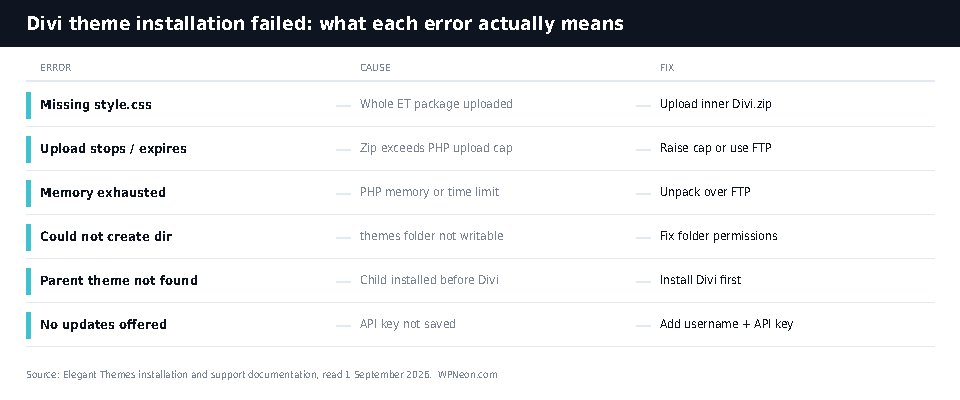
Divi theme installation failed: the six errors, and what each one means
| What WordPress says | What actually happened | Fix | Time |
|---|---|---|---|
| The package could not be installed. The theme is missing the style.css stylesheet. | You uploaded the full Elegant Themes members-area download, which is a container holding several files, not the theme. | Unzip it locally, upload the Divi.zip found inside. |
2 min |
| The link you followed has expired, or the progress bar stops and the page reloads empty. | The file is larger than upload_max_filesize or post_max_size permits. WordPress never received it. |
Raise both limits, or bypass PHP entirely and install over FTP. | 5–15 min |
| Fatal error: Allowed memory size exhausted, a 500 error, or a white screen mid-install. | PHP hit memory_limit or max_execution_time while unzipping. |
Raise the limits, or unpack the folder yourself over FTP. | 10 min |
| Could not create directory. | The web server user cannot write into wp-content/themes. Common after a manual migration or a restore from backup. |
Correct ownership and permissions on wp-content. |
10 min |
| The parent theme could not be found. You will need to install the parent theme “Divi”. | You installed a Divi child theme first. Nothing is broken; the order is wrong. | Install and activate Divi, then install the child theme. | 2 min |
| No error. Divi installs, but no updates are ever offered. | The Elegant Themes username and API key are not saved, so the site cannot authenticate against the update server. | Paste both into Divi → Theme Options → Updates. | 3 min |
The wrong zip file: “the theme is missing the style.css stylesheet”
This is the single most common Divi installation failure, and it is a packaging problem rather than a bug. The button in the Elegant Themes members area does not hand you a theme. It hands you a bundle, and Divi.zip sits inside it alongside documentation and, depending on what you downloaded, other products. Upload the bundle and WordPress does exactly what it is supposed to do: it unzips the archive, looks for a style.css with a theme header at the top level, does not find one, and refuses.
The fix is to unzip the download on your own machine and upload only the Divi.zip you find inside. There is one trap worth naming: Safari on macOS unzips downloads automatically by default, which leaves you with a folder rather than a zip and no obvious file to upload. Elegant Themes’ documentation flags this and the setting is in Safari’s General preferences — turn off “Open safe files after downloading” before you download. Re-zipping the unpacked folder usually works too, provided your zip tool does not add an extra wrapper folder or macOS metadata directories.
If you have unzipped correctly and still get the stylesheet error, check what you actually uploaded. A partially downloaded file — interrupted, or truncated by a proxy — unzips into something incomplete and produces the same message. Delete it and download again before assuming anything is wrong with the site.
The upload dies halfway: PHP limits, not your connection
If the upload progress bar stalls, the page reloads with no theme installed, or you get “the link you followed has expired”, the file never reached WordPress. Two PHP directives decide this: upload_max_filesize caps the size of any single uploaded file, and post_max_size caps the whole request, which has to be at least as large. Shared hosting sets both conservatively, and the ceiling is frequently lower than a modern page-builder theme.
You do not have to guess the number. WordPress prints your effective limit on the upload screen itself — go to Media → Add New and read the line that says “Maximum upload file size”. Compare it against the size of Divi.zip on your own machine. If the file is bigger, you have found your cause, and no amount of retrying will change it.
Raising the limits is a host-level change and the route depends on the host: a cPanel host usually exposes it under “MultiPHP INI Editor” or “Select PHP Version”; a managed WordPress host normally has it in the dashboard or will change it on request. Editing php.ini or adding upload_max_filesize to .htaccess works on some stacks and is silently ignored on others, which is why the FTP route below is often faster than fighting the configuration. If your host will not raise the ceiling at all, that is a data point about the host rather than about Divi — our notes on what to look for in WordPress hosting cover which platforms let you touch PHP settings and which do not.
“Could not create directory”: the themes folder is not writable
This one means the file arrived, unzipped and validated, and then WordPress could not move the result into place. The web server process does not have write permission on wp-content/themes, or the folder is owned by a different user than the one PHP runs as.
It shows up most often after a site has been moved by hand, restored from a backup, or copied between servers with a tool that did not preserve ownership. The usual pattern is that wp-content is owned by root or by an FTP account while PHP runs as www-data, apache or a per-site user. Correcting ownership fixes it permanently; loosening permissions to 777 also appears to fix it and is a bad idea, because it makes the directory writable by every account on the server. If you do not have shell access, this is the point to ask the host — “the web server user cannot write to wp-content/themes” is a precise enough description that any competent support desk will act on it immediately.
“The parent theme could not be found”: you installed the child first
A child theme is a folder containing little more than a style.css with a Template: line pointing at its parent. WordPress reads that line, looks for a theme folder with the matching name, and refuses the install if there is not one. Nothing has gone wrong; the order is simply reversed.
Install Divi.zip first and activate it, then install the child theme and activate that instead. Two details catch people out. The parent must be present but does not need to stay active — activating the child is the point. And the Template: value is case-sensitive and must match the parent folder name exactly, which for Divi is Divi, capital D. A child theme downloaded from a third party that declares Template: divi in lower case will fail on a case-sensitive filesystem and install fine on a case-insensitive one, which is exactly the kind of bug that appears when a site moves from a local Mac to a Linux server. If you are choosing a child theme rather than writing one, our roundup of Divi blog child themes and modules lists which are still maintained.
It installed, but Divi offers no updates
This is not an installation failure, but it arrives disguised as one: Divi is active, the site works, and Dashboard → Updates never shows a new Divi version no matter how many releases go by. Divi does not update through the WordPress.org repository, because it is not distributed there. It checks Elegant Themes’ own update server, and that check needs credentials.
Generate an API key under Account → API Keys in your Elegant Themes account, then paste your username and that key into Divi → Theme Options → Updates and save. Until you do, the site sits on whatever version you uploaded. That is worth taking seriously rather than filing under housekeeping: a theme that never updates is a theme that never receives security fixes, and Divi runs on the front end of every page on the site.
Two things break this after it has been working. An expired membership stops the update server responding, and the symptom is identical to never having entered the key. And regenerating the API key in your account invalidates the old one everywhere it is in use, so a key rotation on a five-site portfolio silently freezes updates on the four sites you did not think about.
Divi 5 theme installation failed: it is a separate update path
Divi 5 changes the shape of this problem, and most pages ranking for Divi installation errors were written before it existed. Divi 5 left beta and shipped as the official release on 26 February 2026, according to Elegant Themes’ own release announcement. The most recent build listed in Elegant Themes’ changelog on 1 September 2026 is Divi 5.11.1, released 19 August 2026.
The failure people report is that Divi 5 does not appear as an available update. It is not supposed to. Divi 4 and Divi 5 run on separate update channels, and an existing Divi 4 site stays on the Divi 4 channel until you opt in explicitly: Divi → Dashboard → Enable Divi 5 Updates, then update from the Divi Overview card. Elegant Themes documents this in its migration guide, which also states that Divi 4 “will be fully supported for at least 12 months following the official public release of Divi 5”, putting the floor of that commitment at late February 2027.
There is one genuinely destructive step in this process, and it is worth stating plainly because it is not reversible. After installing Divi 5 and before running the Divi 5 Migrator, do not open any page in the builder. Elegant Themes’ migration documentation is explicit that doing so converts that page’s content immediately, with no rollback. The Migrator, run properly from Divi → Divi 5 Migrator, keeps a copy of your Divi 4 content and offers a “Restore Divi 4 Content” button; opening a page first skips that safety net entirely.
Rollback has its own limit that is easy to miss. Elegant Themes’ rollback documentation states that if you have performed two or more updates to Divi 5, the built-in rollback to Divi 4 no longer works and you have to reinstall Divi 4 manually. So the window in which “I can just go back” is true is narrower than most people assume. We go through the whole decision, including which Divi 4 features do not survive the move, in whether you should update to Divi 5 yet.
Third-party modules are the other Divi 5 surprise. They keep working, because Divi 5 wraps unsupported elements in a Divi 4 compatibility layer — but any page containing one loads the entire Divi 4 framework alongside Divi 5, which cancels the performance gain on exactly the pages you were hoping to speed up. If the site is already slow, fix that before migrating rather than after: why a Divi site runs slowly covers what actually causes it.
Install Divi over FTP when the uploader will not cooperate
Three of the six failures above — the upload cap, the memory or timeout error, and in practice most permissions problems — disappear if you stop asking PHP to do the work. Installing a theme by FTP is not a workaround for a broken site; it is how theme folders get onto a server, and the WordPress uploader is a convenience layer on top of it.
- Unzip
Divi.zipon your own machine. You should end up with a folder named exactlyDivi, containingstyle.cssat its top level. Ifstyle.cssis one folder deeper, you have unzipped a wrapper — go one level in. - Connect over SFTP (or FTP, if that is all the host offers) and navigate to
wp-content/themes/. - Upload the whole
Divifolder. It contains a large number of small files, so expect this to take several minutes; a stalled transfer here leaves a half-installed theme, so let it finish before doing anything else. - In WordPress, go to Appearance → Themes. Divi will be listed. Activate it.
- Go to Divi → Theme Options → Updates and enter your username and API key, because an FTP install does nothing to set those up.
If a site is important enough that you would rather not experiment on it, do all of this on a staging copy first. That is also the right moment to think about how the site is being administered generally — managing WordPress through an AI assistant has become a practical option this year, and our write-ups of which WordPress MCP servers are maintained and which are archived and the seven WordPress MCP plugins compared on repository data cover what those tools can and cannot reach.
What Divi costs, as listed on 1 September 2026
Divi is not free, and an expired or absent licence is behind two of the failures on this page. These are the plans as listed on Elegant Themes’ own pricing page, read on 1 September 2026.
| Plan | Price | Sites | What it adds |
|---|---|---|---|
| Divi (yearly) | $89 billed yearly | Unlimited | Divi, Divi Dash, 24/7 support, updates while active |
| Divi Pro (yearly) | $277 billed yearly | Unlimited | Adds Divi AI, Divi Cloud, Divi VIP, Divi Teams (4 members) |
| Divi Lifetime | $249 one-time | Unlimited | Lifetime updates and support, no renewal |
| Divi Lifetime + Pro | $297 one-time, then $212/year for Pro services | Unlimited | Lifetime Divi plus the recurring Pro services |
The arithmetic worth doing before you buy: Lifetime at $249 pays for itself against the $89 yearly plan in under three years, so if you expect to run a Divi site past 2029 the yearly plan is the more expensive option. Divi Lifetime + Pro is the plan to read carefully — the “lifetime” applies to Divi, not to the Pro services, which continue at $212 a year.
See current Divi pricing at Elegant Themes
Affiliate link — WPNeon earns a commission if you buy through it, at no extra cost to you.
If you arrived here from a search for a discount code, the honest answer is on our Elegant Themes coupon page, which explains what discounts actually exist and when they run.
Where Divi loses
Divi installs like any other theme and the failures above are ordinary WordPress failures, but the product has real costs and this page would be less useful without them.
Lock-in is the big one. Divi stores layouts in its own format. Deactivate the theme and pages built with the builder do not degrade gracefully into readable content the way a block-editor page does. That is not a bug and Elegant Themes has never claimed otherwise, but it is the reason a Divi decision is harder to reverse than a hosting decision. We put numbers around the comparison in Beaver Builder versus Divi on cost, speed and lock-in and in the older Divi versus Ultra comparison.
The Divi 5 transition is unfinished in a specific way. Third-party modules run in a compatibility layer that loads the Divi 4 framework alongside Divi 5, which is the honest reason a migrated site can end up no faster than it was. Elegant Themes’ own backwards-compatibility documentation says most third-party modules “will have quirks in the builder, depending on how they were developed”. Ravenous Raven Design’s independent Divi 5 review, published 26 February 2026, adds that responsive settings do not always transfer cleanly and that preset configurations need rebuilding in the new system.
The interface changed enough to cost experienced users time. That is a genuine short-term productivity hit for anyone who has built dozens of sites in Divi 4, and it is the most common complaint in the Divi community threads that currently outrank every editorial page on this subject.
What Divi does well is unchanged: unlimited-site licensing at a price no per-site competitor matches, a very large layout library, and a design system in version 5 that makes sitewide changes genuinely fast. Our full assessment is in the Divi theme review, and if you want to see what the theme looks like in production, we keep a list of sites built with Divi. For a working install, the next two things worth setting up are importing and exporting Divi layouts and, if you are selling anything, building a WooCommerce store with Divi’s Theme Builder.
Frequently asked questions
Why does WordPress say the Divi theme is missing style.css?
Because you uploaded the Elegant Themes members-area bundle rather than the theme. That bundle is a container; the actual theme is Divi.zip inside it. Unzip the download on your computer, then upload only Divi.zip through Appearance → Themes → Add New → Upload Theme. The error disappears immediately.
What size upload limit does Divi need?
There is no fixed number to aim for — you need a limit larger than the current Divi.zip, and that file grows with each release. Read your actual ceiling at Media → Add New, where WordPress prints “Maximum upload file size”, and compare it to the file on your machine. If it is smaller, raise it at the host or install over FTP.
Can I install Divi without using the WordPress uploader?
Yes, and it is often faster. Unzip Divi.zip locally, then upload the resulting Divi folder into wp-content/themes/ over SFTP. WordPress will list it under Appearance → Themes with no further steps. You still have to enter your username and API key under Divi → Theme Options → Updates afterwards.
Why is Divi 5 not showing as an available update?
Divi 4 and Divi 5 use separate update channels, and existing sites stay on the Divi 4 channel by design. Opt in at Divi → Dashboard by clicking “Enable Divi 5 Updates”, then update from the Divi Overview card. Elegant Themes states Divi 4 remains fully supported for at least 12 months from 26 February 2026.
Can I undo a Divi 5 migration?
Only within a narrow window. The Divi 5 Migrator stores your Divi 4 content and offers “Restore Divi 4 Content”, but Elegant Themes documents that after two or more Divi 5 updates the built-in rollback stops working. Opening a page in the builder before running the Migrator converts it permanently with no restore.
Does a failed installation mean my licence has a problem?
Almost never. Every error on this page happens before Divi runs any code, so the licence is not involved. The one licence-related symptom is different in character: Divi installs and works, but no updates are ever offered, which means the username and API key are missing or the membership has lapsed.
Prices, versions and release dates on this page were read from Elegant Themes’ pricing page, changelog and support documentation on 1 September 2026. Our method is set out at how WPNeon reviews WordPress products.
