How to Import Divi Layouts (and Export Them)
The short version
To import Divi layouts, open the destination first, then the portability popup, then the Import tab. A layout saved from the Divi Library goes back into Divi → Divi Library → Import & Export. A layout saved from a single page goes into that page’s Visual Builder portability icon. A Theme Builder export goes into the Theme Builder and nowhere else.
If Divi answers with “This file should not be imported in this context”, nothing is corrupt. You have opened the wrong destination. Every Divi .json carries the context it was exported from, and Divi will only accept it back into a matching one.
Here is how to import Divi layouts in the shortest form that is actually true: open the place you want the layout to end up, click the portability icon there, choose the Import tab, pick your .json file, and confirm. The single reason this fails for most people is that they open the wrong destination — a Library file cannot be imported onto a page, and a page file cannot be imported into the Library. Elegant Themes’ documentation describes the mechanics but never draws that map, which is why the same error question has been circulating in Divi forums since 2019.
What follows is the map, exporting as well as importing, and what the portability system will not do for you. Everything below is checked against Elegant Themes’ own documentation and support articles, read on 31 August 2026, against Divi 5.11.1 — the version Elegant Themes listed as current on 19 August 2026. Where a step differs between Divi 4 and Divi 5, the difference is named.
How to import Divi layouts: the three destinations
Divi’s portability system stores a context marker inside every file it exports. Elegant Themes’ support team describes the cause of the common failure in one sentence: the error appears when “the JSON file is not importing into the same location from where it was exported.” There are three contexts, and they are not interchangeable.
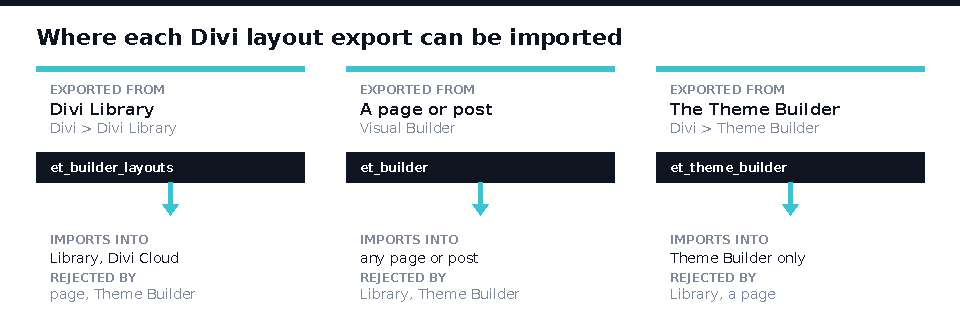
The Divi Library context (et_builder_layouts). This is what you get when you export from Divi → Divi Library → Import & Export. It can hold many layouts at once, and it imports back into the Library on any Divi site, or into Divi Cloud. It will not import onto a page and it will not import into the Theme Builder.
The page context (et_builder). This is what you get when you open a page or post in the Visual Builder and use the portability icon there. It contains one page’s layout. It imports onto any page or post, and nowhere else.
The Theme Builder context (et_theme_builder). This is what you get when you export from Divi → Theme Builder. It contains header, footer and body templates with their assignment rules. It imports into the Theme Builder only.
Once you know which of the three you are holding, the import itself is unremarkable. Open the matching destination, click the portability icon (two arrows in a box — in the Library it is the “Import & Export” button, on a page it sits in the bottom bar of the Visual Builder, in the Theme Builder it sits top right), choose Import, click Choose File, select the .json, and click the import button.
Exporting a Divi layout: what actually goes in the file
Exporting runs through the same popup, on the Export tab. Elegant Themes’ documentation is unusually specific about the payload: “Everything, including images, custom CSS and Advanced Design Settings are contained in a single JSON file.” That is a genuine strength — there is no separate media step, and a layout handed to a colleague arrives with its images intact.
It is also the source of the most common practical complaint. The same documentation warns that “exporting large library collections, especially those that contain high resolution photos, can take some time.” Images are embedded, so a Library export of a photography-heavy site is not a small file, and the export runs in the browser. If your export appears to hang, it is usually still working.
Two habits are worth forming. First, name your export file at the point of export rather than accepting the default — three files called Divi Builder Layout.json in a downloads folder is a problem you create for yourself. Second, export from the narrowest context that will do the job. A single page you want to reuse should be exported from that page, not from the Library, because a page-context file is the one that will import cleanly onto a page later.
“This file should not be imported in this context”: the fix
Elegant Themes publishes a dedicated support article on this error, last updated 9 August 2024. Its explanation is the context mismatch described above, and its recommended fix is diagnostic rather than technical: work out which context the file came from by trying to import it in each of the three places, then move it where you need it from there.
In practice the sequence that resolves this fastest is:
- Try the Divi Library first. Go to Divi → Divi Library → Import & Export → Import. Most layouts shared by third parties — layout packs, child theme bundles, downloads from Divi shops — are Library exports, so this succeeds more often than not.
- If the Library rejects it, try a blank page. Create a new page, open the Visual Builder, use the portability icon there. A file that imports here was exported from a page.
- If a page rejects it too, it is a Theme Builder file. Go to Divi → Theme Builder and import it there.
- To move it between contexts, import then re-save. A page-context file that you want in your Library goes onto a blank page first; then, from the Visual Builder, save that layout to the Library. Divi re-stamps it on the way through.
Three things this error is not: a corrupted download, a file-size limit, and a permissions problem. If the file were truncated, Divi would report a parse failure rather than a context complaint. Elegant Themes’ article ties the message specifically to the context field, and treating it as a corruption problem sends people re-downloading files that were always fine.
How to import Divi layouts into the Theme Builder
Theme Builder files deserve their own warning, because this is where portability can do real damage. A Theme Builder export contains not only your header and footer designs but the assignment rules that decide which templates apply to which parts of the site. Importing one on a site that already has templates means the incoming rules meet your existing ones.
Before importing a Theme Builder file into a live site, export your current Theme Builder first and keep that file. It takes fifteen seconds and it is the only rollback you have. The Theme Builder import screen offers the choice of replacing your existing templates or adding to them; read which one is selected before you confirm, because the destructive option is the one that produces a site with two headers or no header at all.
The same caution applies at page level, and here Divi’s default works against you. The documentation states the limitation without softening it: “Imported layouts will replace your current page content with the exported content.” On a draft that is what you want. On a live page it is not, and the undo is a WordPress revision rather than anything Divi offers you.
Divi 5 improved this specific point. Elegant Themes’ Divi 5 help article, published 25 November 2025, tells users that “if your page already has a layout and you want to keep that in place, make sure that after choosing the layout to be imported from the Divi Library, the Replace Existing Content option is unchecked.” The option existed before; Divi 5 surfaces it in the flow where the decision is made.
Divi Cloud versus exporting JSON files
Divi Cloud is Elegant Themes’ answer to the whole export-download-upload-import cycle. Their documentation describes it as being “like Dropbox for Divi layouts” — you save a layout, section, row or module to the cloud from one site and pull it into another site where the same Divi account is logged in.
It removes real friction, and it removes the context error entirely, because there is no file to misplace. It also introduces a cost and a dependency, and the free allowance is smaller than most people expect.
| Method | Moves | Cost | Where it loses |
|---|---|---|---|
| JSON export / import | Layouts, pages, Theme Builder templates, Customizer settings — images and CSS embedded | Included with any Divi licence | Context mismatch error; slow on image-heavy libraries; manual file handling |
| Divi Cloud | Layouts, sections, rows and modules, synced across every site you are logged into | 50 items free on any membership; unlimited requires a paid Divi Cloud subscription | 50 items goes quickly on agency work; requires being logged in; no offline copy |
| Full site copy | Everything — content, media, settings, plugins | Depends on host or migration plugin | Overkill for one layout; overwrites the destination |
Elegant Themes states that “all Divi users can store up to 50 items on their Divi Cloud for free,” with unlimited storage sold as a separate subscription. Fifty is generous for one site and thin for an agency: a single well-built layout pack can consume a quarter of it. If moving a whole site rather than a layout is the actual job, our write-up on the practical ways to clone a WordPress site covers the tools that do that properly.
What portability will not do for you
Four limits are worth knowing before you build a workflow on this.
The file does not tell you what it is. Open a Divi export in a text editor and the context is buried in JSON, not in the filename. Divi could name exports by context and does not. That single design decision is what generates the error.
The layout only works in Divi. A Divi .json is not a WordPress format. It does not open in Gutenberg, Beaver Builder or Elementor, and there is no export path out of Divi that preserves a design. That is the honest lock-in cost of a builder-based site, and it belongs in the decision before you build, not after. We weigh it up in our comparison of Beaver Builder and Divi and in Divi against Ultra.
Divi 4 to Divi 5 migration is still being repaired. Elegant Themes’ own Divi 5 changelog carries entries such as “fixed Divi 4 to Divi 5 migration for mixed Gutenberg and Divi Layout content,” alongside continuing compatibility fixes for third-party modules. Migration is supported and documented, and it is not finished. If you are weighing the jump, our assessment of whether to update to Divi 5 yet goes through what is complete and what is not.
Importing a heavy layout imports its weight. Embedded images arrive at whatever resolution they were exported at, and a premade layout pack typically ships with more modules than a page needs. A site that got slow shortly after a layout import usually got slow because of the layout import — a pattern we walk through in why a Divi site runs slowly.
Doing this across many sites
If you maintain Divi on a handful of client sites, the portability popup is fine. Past that, the clicking adds up, and Divi Cloud’s 50-item free tier stops being the answer.
Two directions are worth knowing about. Divi Cloud’s paid tier removes the item cap and is the path Elegant Themes intends. Separately, WordPress sites are increasingly manageable through the Model Context Protocol, which lets an AI assistant read and write posts, media and settings over the REST API rather than through a browser — useful for the bulk work around a layout rollout, though not for the Divi builder itself. We cover which WordPress MCP servers are maintained and which are archived, and, because this gives software write access to a live site, what each MCP setup actually exposes.
What Divi costs, as listed on 31 August 2026
Portability is included in every Divi licence, so this matters only if you are deciding whether to buy in. These are the prices displayed on Elegant Themes’ own membership page, read on 31 August 2026:
- Divi, yearly — $89 billed yearly. Theme and builder on unlimited sites, plus Divi Dash. Divi Cloud and Divi AI are sold separately.
- Divi Pro, yearly — $277 billed yearly. Adds Divi AI, Divi Cloud, Divi VIP support and Divi Teams with four seats.
- Divi Lifetime — $249 one-time. Same inclusions as the yearly plan, no renewal. Divi Cloud and Divi AI remain separate subscriptions.
- Divi Lifetime + Pro — $297 one-time plus $212 per year for the Pro services.
Elegant Themes does not publish standing coupon codes; discounts appear as scheduled sale events instead. We set out what that means for buyers in our honest answer on Elegant Themes coupon codes, and the product itself is assessed in our Divi review, rewritten for Divi 5.
See current Divi pricing at Elegant Themes
Affiliate link
Frequently asked questions
Why does Divi say “This file should not be imported in this context”?
Because the file was exported from a different part of Divi than the one you are importing into. Elegant Themes attributes the message to the JSON not “importing into the same location from where it was exported.” Try the Divi Library, then a blank page, then the Theme Builder. One of the three will accept it.
Can I import a Divi layout without replacing the page I am on?
Yes, in Divi 5. When you choose a saved layout, uncheck Replace Existing Content before confirming and the imported layout is added below what is already there. Divi’s documented default behaviour is that “imported layouts will replace your current page content,” so check the box state every time.
Do images come across when I import a Divi layout?
Yes. Elegant Themes states that “everything, including images, custom CSS and Advanced Design Settings are contained in a single JSON file.” Nothing separate needs uploading. The trade-off is file size and export time, which their documentation flags for large, photo-heavy Library collections.
Is Divi Cloud free, and how many layouts can I store?
Every Elegant Themes membership includes Divi Cloud storage for up to 50 items at no extra cost. Beyond 50 you need a paid Divi Cloud subscription for unlimited storage, which is bundled into Divi Pro at $277 a year and sold separately to standard members.
Will my Divi 4 layouts import into Divi 5?
Elegant Themes supports Divi 4 to Divi 5 migration and documents both the migration path and a rollback to Divi 4. Their changelog also shows repeated migration fixes through 2026, so test on a staging copy rather than a live site, and keep the Divi 4 export.
Where is the portability icon in Divi?
Three places. In Divi → Divi Library it is the “Import & Export” button at the top. On a page it is the two-arrow icon in the Visual Builder’s bottom settings bar. In Divi → Theme Builder it sits in the top-right controls. Each opens the same popup with Import and Export tabs.
Further reading on Divi at WPNeon
If you are building rather than troubleshooting: building a WooCommerce store with the Divi Theme Builder covers the template assignment rules that Theme Builder exports carry with them, Divi blog child themes and modules covers what arrives as a child theme rather than a layout file, and real sites built with Divi shows what the builder produces in practice.
Sources for this page: Elegant Themes’ documentation on importing and exporting Divi Builder layouts and Library collections, their support article on the “should not be imported in this context” error, the Divi Cloud documentation, and the Divi 5 Library import article, all read on 31 August 2026. Prices as listed on the Elegant Themes membership page on the same date. How WPNeon checks things is set out in how we review WordPress products.
