WordPress Dashboard Plugins: 6 Tools by Admin Task
Some links on this page are affiliate links. If you buy through one, WPNeon earns a commission at no extra cost to you. See how we review.
Want clients to see a cleaner WordPress dashboard—or need to control what staff can actually do? Those are different jobs. A branding plugin changes the interface; a permissions plugin changes capabilities. Choosing the wrong category may make the admin area look simpler without protecting sensitive functions.
Find the right dashboard tool
Custom welcome screen and widgets: Ultimate Dashboard. Agency branding: White Label CMS or WPShapere. Clean up menu items: Adminimize. Change genuine permissions: User Role Editor. Client-oriented admin bundle: Ultimate Client Dash.
WordPress dashboard plugins compared
| Plugin | Main job | Check before installation |
|---|---|---|
| Ultimate Dashboard | Replace widgets and create a client home screen | Which widgets and branding controls need Pro? |
| White Label CMS | Brand client-facing admin pages | Does it work with your current admin plugins? |
| Adminimize | Hide unnecessary admin UI by role | Hidden UI is not a security boundary. |
| User Role Editor | Edit actual WordPress capabilities | Test with a non-admin account. |
| WPShapere | Premium admin interface and login branding | Confirm its recent changelog and license. |
| Ultimate Client Dash | Client dashboard and white-label features | Separate free from Pro features. |
1. Ultimate Dashboard: a useful client landing page

Ultimate Dashboard’s WordPress.org listing describes custom widgets, admin styling and login customization. An agency can replace generic welcome content with documentation, publishing instructions and support details. Compare its free features with Pro before planning a multisite or fully white-labeled rollout.
View Ultimate Dashboard options →
2. White Label CMS: brand the backend
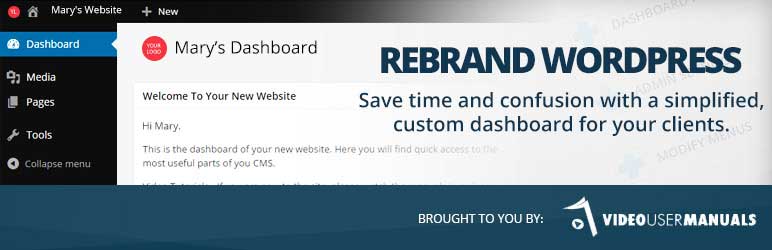
White Label CMS is aimed at logos, dashboard panels and simplified client admin menus. It is appropriate when a customer maintains pages after handover. Document every hidden menu so the client knows how to request access later.
3. Adminimize: reduce clutter, not permissions
Adminimize hides interface elements that particular roles do not need. Crucially, concealing a menu does not remove the underlying WordPress capability or REST API access. For genuine restrictions, configure roles and capabilities separately, then test them. This also matters for integrations such as a WordPress MCP connection.
4. User Role Editor: control what accounts may do

User Role Editor deals with actual capabilities rather than appearance. Start from WordPress’s built-in roles, change only the permissions required for a specific job, and verify the result using a separate test account. Make a backup before broad changes to administrator or editor roles.
5. WPShapere: premium admin design
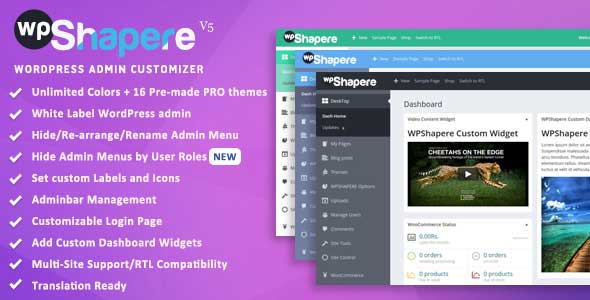
WPShapere is a paid option for changing the admin’s appearance and client branding. Its original listing is linked below; inspect current compatibility, update dates and license conditions before purchase rather than assuming an older screenshot reflects the current interface.
6. Ultimate Client Dash: an agency-oriented alternative
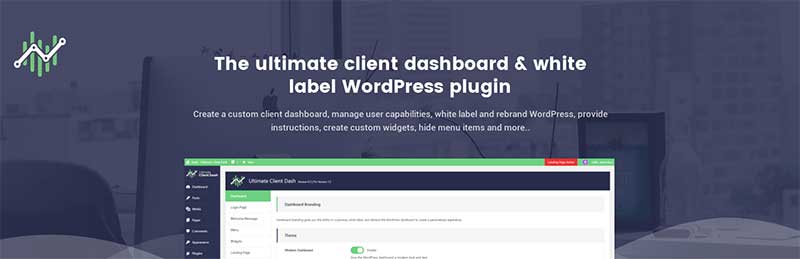
Ultimate Client Dash combines client dashboard elements with white-label controls. Compare its free feature list with Ultimate Dashboard; avoid running two plugins that both replace the same welcome panels, menus or login styles.
Three checks before changing a client dashboard
- Separate design from security: use real capabilities for access control; hidden menus are only a usability change.
- Keep recovery access: retain a known administrator account and test changes on staging.
- Check maintenance: review the latest plugin changelog and supported WordPress version before installing.
Need a dashboard for users submitting content rather than staff editing the backend? That is a different requirement; investigate a front-end submission solution rather than adding more admin styling. For related roles and workflow options, see WordPress multi-author plugins.

@
I am a blogger and don’t have a multi-site set-up nor do I have other authors on my sites. I do not need many of the options the plugins listed above offer.
But I do find the WordPress admin area boring and to address that I use the Aquila Admin Theme plugin.
This plugin is simple, easy to use, and makes a HUGE difference in the look and the feel of the admin area.
@
Thanks for your feedback. Never heard of that plugin before but will surely look into it.
@
Your list contains one of the finest plugins. Cool!
User Activity Log Pro plugin may be a great addition to this list. It helps you monitor and keep track of all the activities that occur on the admin side also informs you about WordPress core updates, post updates, user activities, etc. It notified when a particular user is logged in, so you can track all user’s activity on your website easily.