Thrive Leads Review: Opt-in Forms and A/B Testing
Some links on this page are affiliate links. If you buy through one, WPNeon earns a commission at no extra cost to you. It does not change what we recommend — see how we review.
You may have already read and heard about the importance of an email list hundreds of times. An engaged email list helps you reach your audience directly and notify subscribers about your latest post, product, service, or special offer.
Also read: Thrive Quiz Builder Review – A Detailed How to do Tutorial and Demo to Build Your Email Lists
But how hard is it to build a large, engaged email list? To be truthful, it isn’t always easy if you don’t know the right way to do it. But with WordPress and its huge collection of plugins and themes, growing your list can be much more manageable.
The Thrive Leads plugin is one resource that can help you grow your email list. In this tutorial, we review Thrive Leads and explain how it can help you grow your online business. Before that, let’s get to know a little more about the plugin.
Thrive Leads Plugin Review
What is Thrive Leads?
Thrive Leads is an all-in-one WordPress solution for creating and optimizing email opt-in forms. It helps you attract more subscribers and includes conversion-focused design tools, reporting, visual editing, and testing features to make your lead-generation campaigns easier to manage.
In other words, Thrive Leads is designed to help you turn website visitors into subscribers and, ultimately, customers.
The plugin includes a visual editor and integrates with many popular email marketing services. You can install and configure it without advanced technical knowledge, although the available settings and integration names may vary depending on the current Thrive product version.
From using pre-designed opt-in templates and connecting your email marketing service to tracking conversions and testing designs, you can manage most of your list-building workflow in one place.
Why Use Thrive Leads?
In simple terms, Thrive Leads is useful if you want to optimize your opt-in forms and grow an engaged email list. It brings several lead-generation and conversion-optimization tools together for bloggers, marketers, and online business owners.
Its feature set includes a visual editor, reporting, A/B testing, targeting options, and campaign management tools. However, the best choice depends on your budget, email marketing provider, site performance requirements, and the other tools you already use.
Before evaluating the plugin further, let’s look at the features it offers.
Features of Thrive Leads
Like many modern lead-generation plugins, Thrive Leads includes a wide range of features. Here are some of the most useful ones.
#1. Flexible Opt-in Form Options
With Thrive Leads, you can display several types of opt-in forms on your website. Depending on the current version and your campaign settings, these may include a sticky ribbon or notification bar, popup lightbox, inline form, slide-in form, sidebar widget, or two-step opt-in form.
You can also create content lockers, scroll mats, and multiple-choice opt-in forms. These options let you choose a format that fits your content and audience.
#2. Advanced Targeting
Thrive Leads lets you display targeted opt-in offers based on your content and campaign rules. This can help you present more relevant offers to visitors and improve your opt-in rate. You can organize targeting by posts, pages, categories, tags, and other display conditions supported by your current setup.
#3. A/B Split Testing
With Thrive Leads, you can experiment with different versions of your forms to find out what works best for your website. Split testing can help you make evidence-based improvements to conversion rates by comparing variations in form type, design, copy, fields, or calls to action.
#4. Smart Links
Smart Links can prevent you from showing the same opt-in form to existing subscribers when you have a way to identify them. Instead, you can display different content or an alternative offer. New visitors can see a subscription form, while existing subscribers can receive a more relevant message.
#5. Insights and Analytics
You can’t improve your campaigns until you understand how they are performing. Thrive Leads includes reporting tools that can help you review impressions, conversions, and conversion rates so you can refine your forms and targeting when necessary.
These are some of the leading features Thrive Leads offers. The complete feature set may vary with the current product version and integrations. Let us now move to the installation and setup process.
#6. Pre-Built Templates
Thrive Leads includes professionally designed templates that you can customize for your campaigns. Choose a template, edit its text and appearance, and publish it wherever you want to display the form.
How To Install and Set Up the Thrive Leads Plugin?
Installing Thrive Leads is straightforward if you have basic WordPress experience. To install it, log in to your WordPress dashboard, upload the plugin package you downloaded from this link, and activate it. Depending on your current Thrive account and product setup, you may instead install or manage the plugin through the Thrive Product Manager. Once activated, you can configure its settings.
Thrive Leads General Settings
To get the best results, connect Thrive Leads to the email marketing service you use to collect and manage subscribers. In your WordPress dashboard, open the Thrive Leads settings or the relevant API connection area. The exact menu names may differ in current releases.
The screen may look similar to the following:
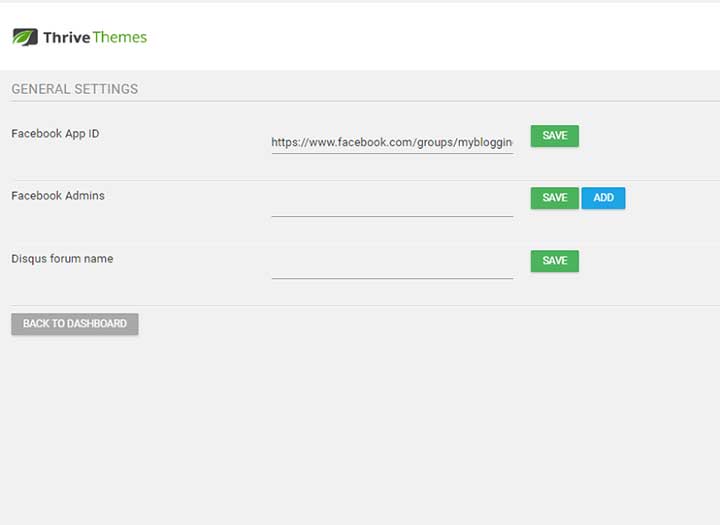
Add the requested connection details, verify the integration if required, and save your settings. Use an email marketing provider that supports your consent, privacy, and unsubscribe requirements.
Manage Notifications
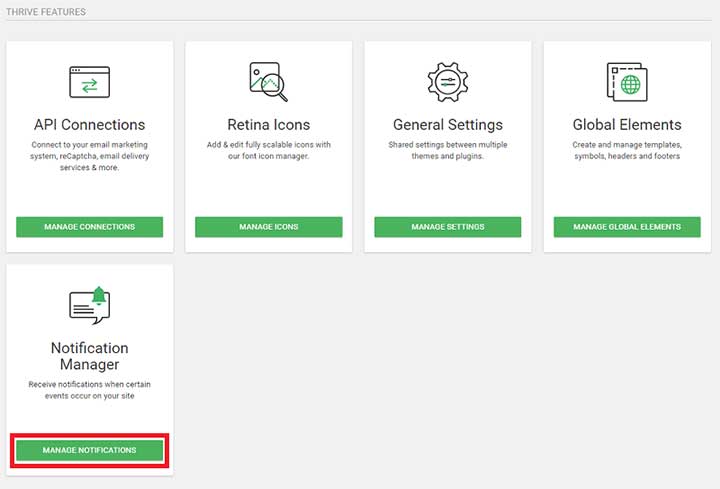
Thrive Leads can notify you when selected campaign events occur. To manage notifications, open the Thrive Leads dashboard and look for the Notifications or Manage Notifications area. The exact navigation may vary in the current interface. You should see options similar to these:

Select the notification type you want and save your settings. For example, you may receive a notification when an A/B test on your site finishes.
For notifications that support email delivery, enter the address that should receive the message and customize the subject line if those options are available. Save your settings when you’re finished.
Creating a New Form
If you open the Thrive Leads dashboard, you will see options for creating and managing campaigns. When you create a form through these options, Thrive Leads can collect performance data such as impressions and conversions.
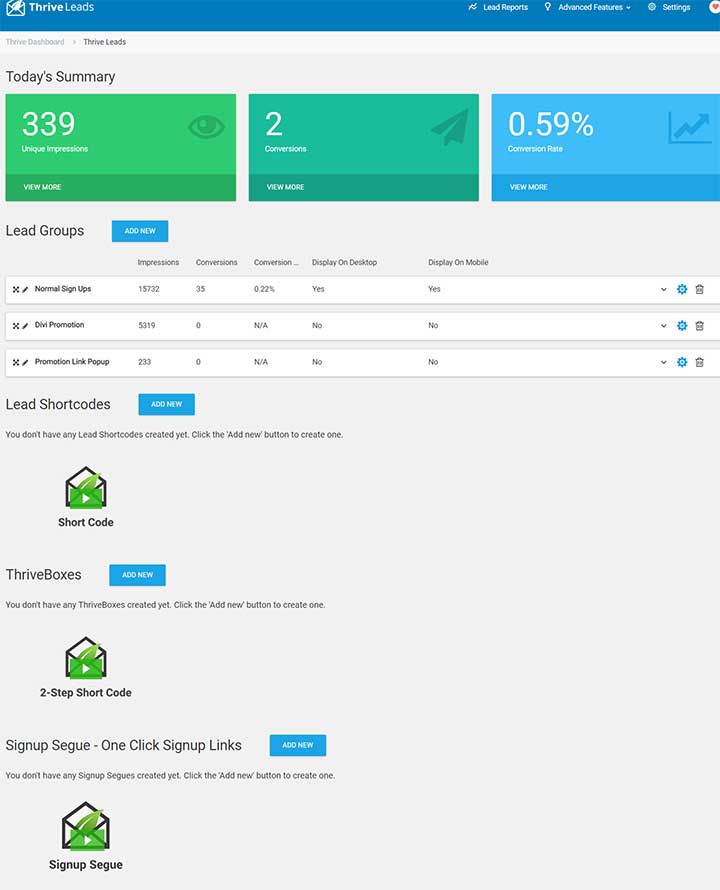
Let’s look at the first option, Lead Groups. A Lead Group can be used to manage forms and display rules for a campaign. Click Add New to start the process. You will then be asked to name your campaign or promotion.
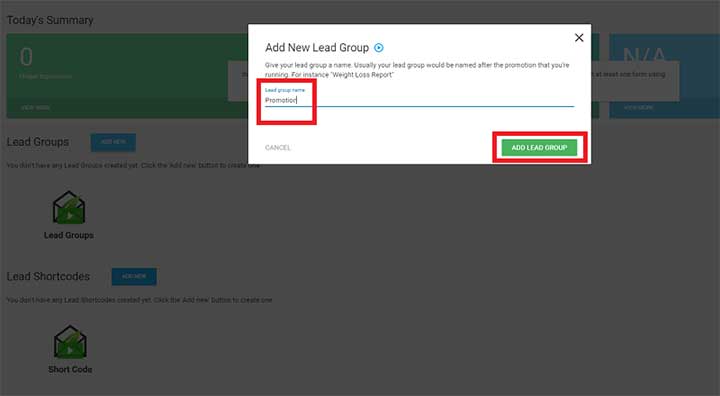
The group will be added to your dashboard. You can then create the form you want to use for your campaign. Click Add New Type of Opt-in Form.
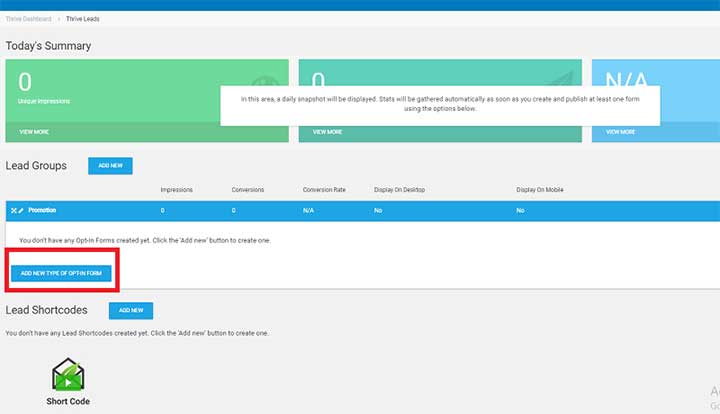
You will then have several form types to choose from.
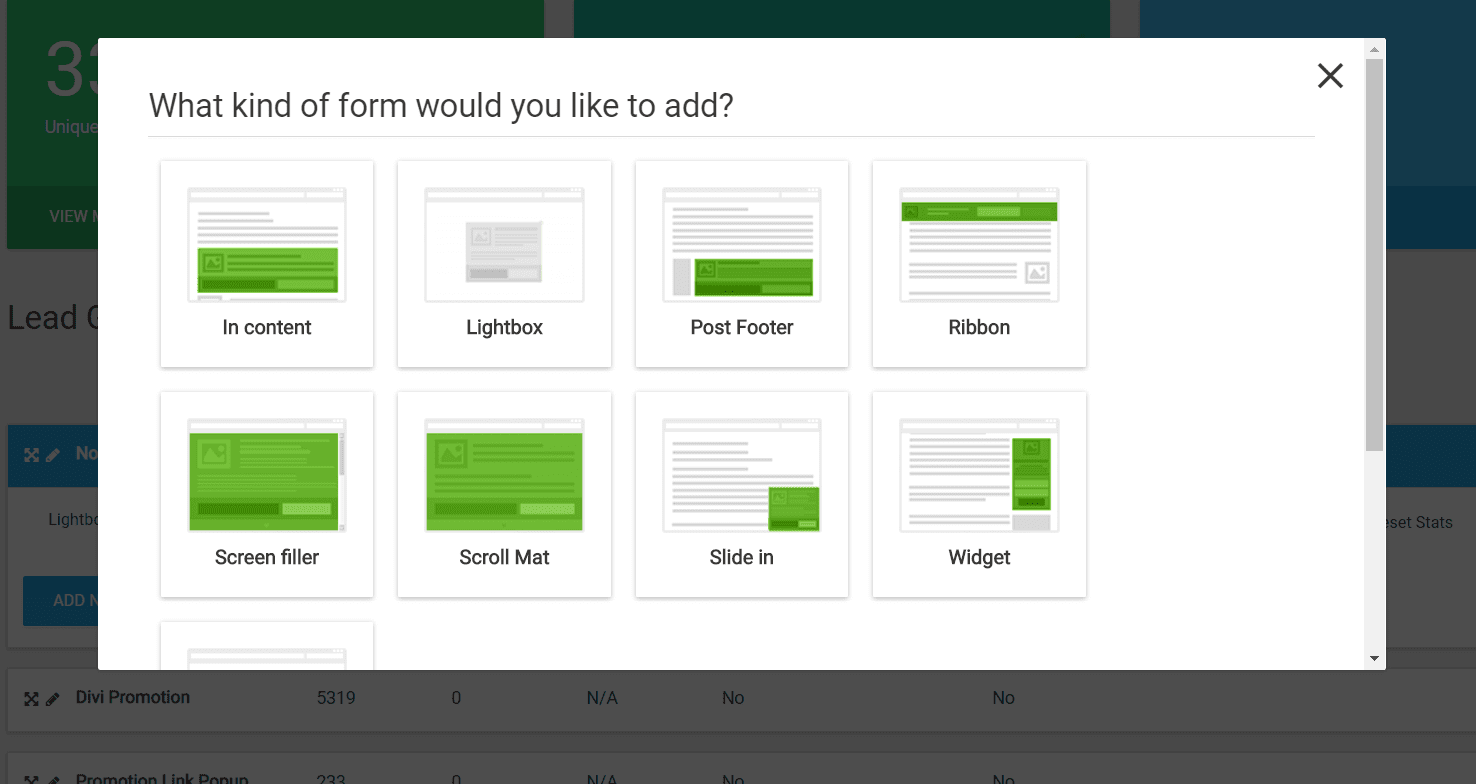
I have selected the Lightbox option. This will be added to your Lead Group. The next step is to add the form.
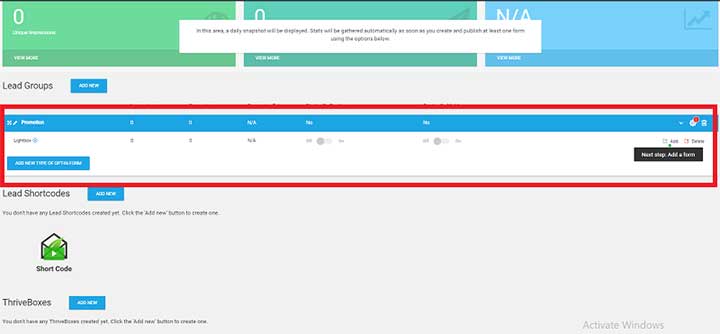
Click Add Form in the right corner of your Lead Group.

Name your form and continue by clicking Create Form.

Extensive Options for Editing Forms
You can edit your form by clicking the Edit option next to it. Thrive Leads provides many design controls to help you create an appealing form. Start by selecting a form template. Scroll through the available templates and choose the one that best fits your campaign.
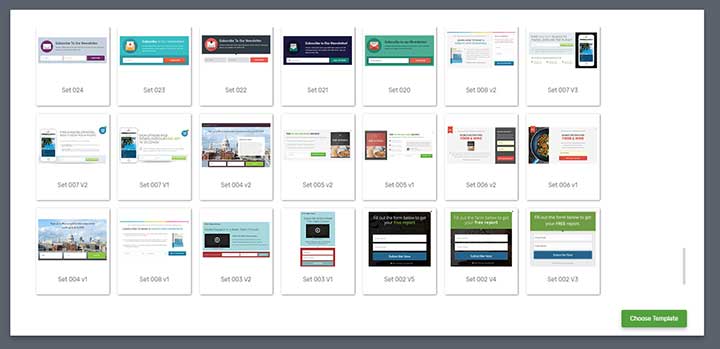
You can edit each section of your form by clicking it directly. Select the text section to add your own copy. You can also change colors, add or remove icons, adjust columns, and modify other elements to fit your requirements. Review the customization options in the editor sidebar.

You will also find block-level options in the sidebar.

Customize your blocks, review your display and conversion settings, and save your changes when you’re finished.
A/B Testing Your Forms
No matter what you do, there is always a chance that your form can be improved. To help with this, you can A/B test different versions of your form. Create two variations and compare elements such as the form type, color, copy, headline, fields, or call to action to find the version that performs best for your audience.
Follow the process described above to create another form. You can also create a copy of an existing form and make the changes you want.

Click Start A/B Test. Thrive Leads will run the test and collect performance data so you can compare the variations. Depending on the available settings, you may also allow the plugin to automatically display the higher-converting form after the test reaches its goal or has enough data. Results can vary, so use a meaningful test period and avoid making decisions based on very small sample sizes.
Form Analytics

With its reporting tools, Thrive Leads can help you review form impressions, conversions, and conversion rates. Use these insights to identify underperforming forms, compare A/B test variations, and make informed changes to your offers, copy, targeting, and design.
