Disable Gutenberg and Keep the Classic Editor
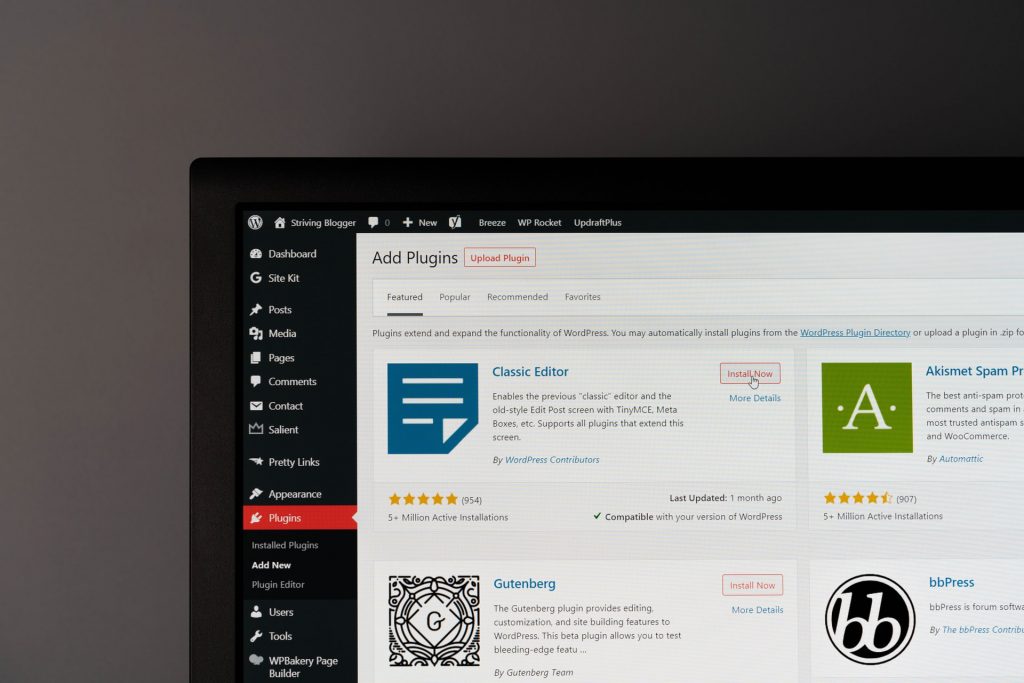
Install the Classic Editor plugin and activate it. WordPress goes straight back to the old editing screen, with nothing to configure and no code to write. It is an official WordPress plugin with more than 8 million active installations, rated 4.9 out of 5 across 1,246 reviews, and the current release is tested against WordPress 7.0.4.
If you want the block editor in some places and the classic screen in others, use Disable Gutenberg instead. And if you would rather add nothing at all to your plugin list, a single filter in a child theme turns the block editor off site-wide.
 Jeff Starr’s Disable Gutenberg goes further. It has more than 500,000 active installations, a 5 out of 5 rating across 733 reviews, and is tested against WordPress 7.1.
Where the Classic Editor plugin gives you one site-wide default plus a per-post switch, this one disables the block editor selectively: by post type, by user role, by theme template, or by individual post. It can also bring back the classic widgets screen and hide the block editor’s menu items and notices, which matters if you are handing a site to someone who should never have to think about any of it.
Its settings sit under Settings > Disable Gutenberg, and it adds nothing to the Writing screen, so on a shared site it stays out of the way.
Jeff Starr’s Disable Gutenberg goes further. It has more than 500,000 active installations, a 5 out of 5 rating across 733 reviews, and is tested against WordPress 7.1.
Where the Classic Editor plugin gives you one site-wide default plus a per-post switch, this one disables the block editor selectively: by post type, by user role, by theme template, or by individual post. It can also bring back the classic widgets screen and hide the block editor’s menu items and notices, which matters if you are handing a site to someone who should never have to think about any of it.
Its settings sit under Settings > Disable Gutenberg, and it adds nothing to the Writing screen, so on a shared site it stays out of the way.
What the block editor replaced
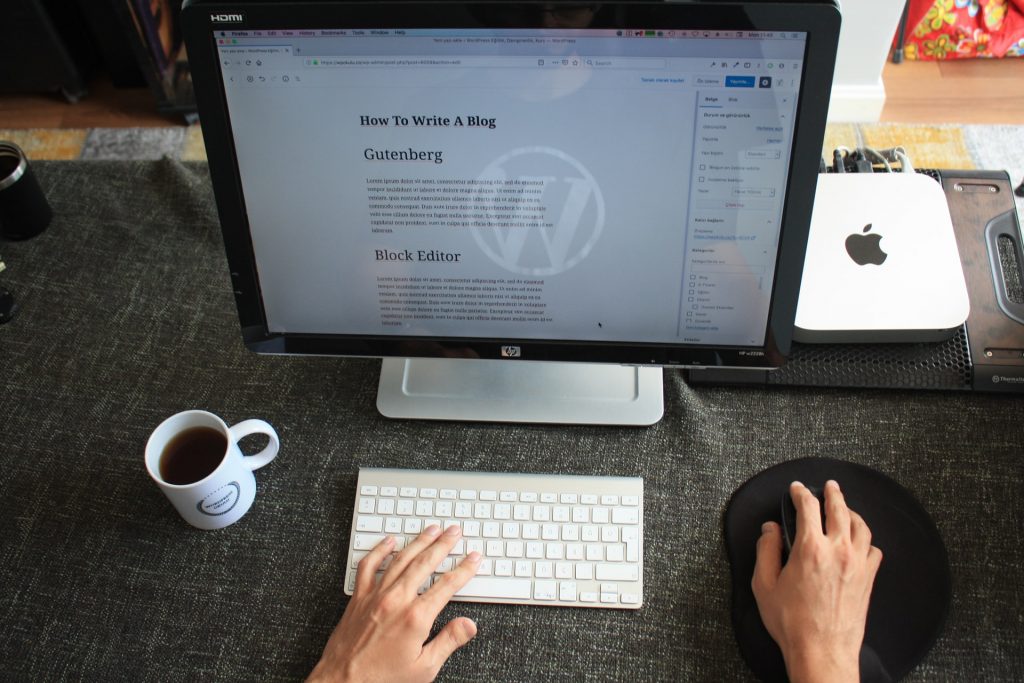
The block editor arrived with WordPress 5.0, released on 6 December 2018 under the codename Bebo. Until then every post and page in WordPress was written in the classic editor: one TinyMCE text box with a toolbar above it. The block editor works differently. Paragraphs, images, video, galleries, quotes, columns, buttons and embeds are each their own block, and you move blocks around rather than editing one long stream of markup. WordPress 5.0 shipped with a long list of default blocks, blocks can be reused, and many convert from one type to another in place. Plugin authors have added thousands more since. Those block icons, and most of the ones in the admin, come from Dashicons, the icon font WordPress bundles; our Dashicons reference lists the class names if you want to reuse the same glyphs. None of that helps if your theme, your workflow or the people you train are built around the old screen. Reverting is supported, and it takes about a minute. Also read: Gutenberg vs Classic Editor: Which Should You UseHow long can you keep the classic editor?
There is no published end date, and you should be sceptical of any specific one you see quoted. The Classic Editor plugin’s own page on WordPress.org still carries the line it has carried for years: “Classic Editor is an official WordPress plugin, and will be fully supported and maintained until 2024, or as long as is necessary.” That sentence has already outlived its own deadline, and the plugin is plainly still alive. It is tested against WordPress 7.0.4 and updated regularly. So treat the classic editor as supported today, and plan to move across at some point of your choosing, rather than building a schedule around a cut-off nobody has actually announced.Method 1: the Classic Editor plugin
Reach for this one first. It does not bolt on a lookalike editor. It restores the editor WordPress shipped for fifteen years and makes it the default. It is maintained by WordPress contributors, so compatibility is rarely the thing that breaks, and installing it also clears the block editor prompts out of your dashboard. Search for Classic Editor under Plugins > Add New, or install it from the plugin’s page on WordPress.org. Once it is active, go to Settings > Writing. Two options matter:- Default editor for all users. Choose Classic Editor and every post and page opens in the old screen. Switch it back to Block Editor whenever you like; nothing in your stored content changes either way.
- Allow users to switch editors. Set this to Yes and each row in the Posts list gains an “Edit (Classic)” link next to the normal one, so writers pick per post. On a site with several authors this is usually the better setting, because it stops one preference being imposed on everybody.
Method 2: Disable Gutenberg
Jeff Starr’s Disable Gutenberg goes further. It has more than 500,000 active installations, a 5 out of 5 rating across 733 reviews, and is tested against WordPress 7.1.
Where the Classic Editor plugin gives you one site-wide default plus a per-post switch, this one disables the block editor selectively: by post type, by user role, by theme template, or by individual post. It can also bring back the classic widgets screen and hide the block editor’s menu items and notices, which matters if you are handing a site to someone who should never have to think about any of it.
Its settings sit under Settings > Disable Gutenberg, and it adds nothing to the Writing screen, so on a shared site it stays out of the way.
Method 3: one filter, no plugin
If you look after the theme, this single filter switches the block editor off for every post and page:add_filter( 'use_block_editor_for_post', '__return_false', 10 );