How to Integrate WhatsApp in Your WordPress Website with a WhatsApp Chat Plugin?
Did you know that more than 2 billion people worldwide use WhatsApp? So why not integrate it with your WordPress website and provide customers with convenient support? You can do that with this WhatsApp Chat Plugin.
Also read:
– 25+ Best WordPress Live Chat Plugins to Provide Instant Support on Your Website
– Best WordPress WhatsApp Plugins
The plugin adds a customizable button to your site. Visitors can click it to start a WhatsApp chat with you or your support team. On mobile devices, the link opens the WhatsApp app; on desktop, it opens WhatsApp Web.
WhatsApp Chat Plugin

Either way, you can use WhatsApp’s established messaging platform to support your users. It also makes follow-up easier because the conversation remains in your WhatsApp chat list after the session ends.
If this sounds useful and you want more information, you’re in the right place. Here, we review its features and provide an in-depth tutorial covering the plugin’s setup and use.
WhatsApp Chat WP – Features
Before we explain how to use the plugin, let’s look at what it can do. It’s worth noting that the plugin has both free and premium options.
The free version provides the basic features needed to set up WhatsApp chat integration. If you want more control over the user experience, the premium version adds extra customization and targeting options. We’ll indicate which features are available for free and which require a paid license.
The WhatsApp Chat Button
Once installed, the plugin adds a WhatsApp Chat button to your WordPress website. You can customize it to match your site’s design and branding.
You can configure the button to open WhatsApp directly with one click, allowing visitors to start a chat with you or the support number you specify. Alternatively, you can set up a “contact box” that opens when a visitor clicks the “chat button“.
The WhatsApp Contact/Chat Box

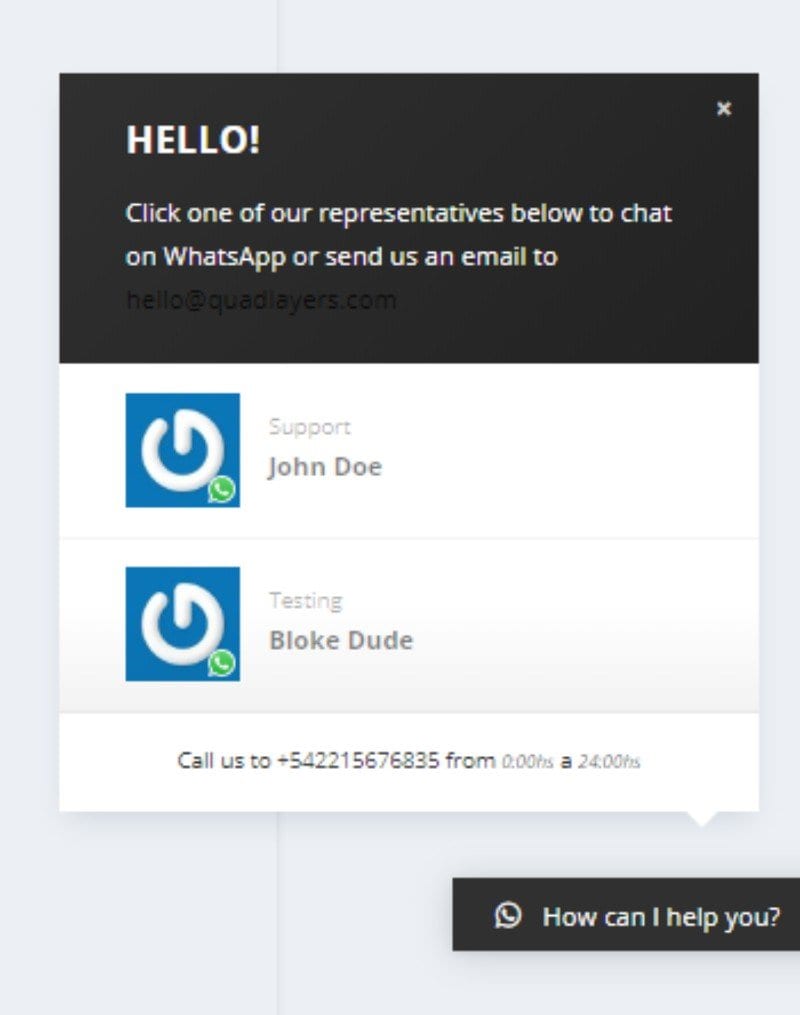
The WhatsApp Contact Box is an optional setting that you can enable or disable. It acts as an intermediate screen where you can display a custom message and list the members of your support team who are available to answer questions.
The free version allows you to set up a single representative. The premium version lets you assign multiple support representatives to the contact box, helping visitors direct their questions to the right person.
When a visitor clicks one of the representatives, a chat interface appears with a custom message and a prompt to describe their issue. After they submit the message, they’re taken to WhatsApp to continue the conversation.
Display Options
The plugin gives you control over where your chat button appears on your website.
You can configure it to appear for desktop users only, mobile users only, all users, or no users.
You can also target the button to your homepage, blog, search results, or 404 pages. Additional options let you display it according to categories, tags, and post formats. These targeting options are available in the free version.
The premium version provides more granular control, including targeting individual posts, pages, and custom post types.
Customization Features
The plugin lets you customize the appearance of both the WhatsApp Chat button and the contact box.
- Specify button layout—tabbed or bubble.
- Add or remove rounded corners.
- Control button positioning—bottom right, bottom left, middle left, or middle right.
- Set custom text for the chat button.
- Add a custom icon to the chat button. (Premium)
- Set a default message for the chat field.
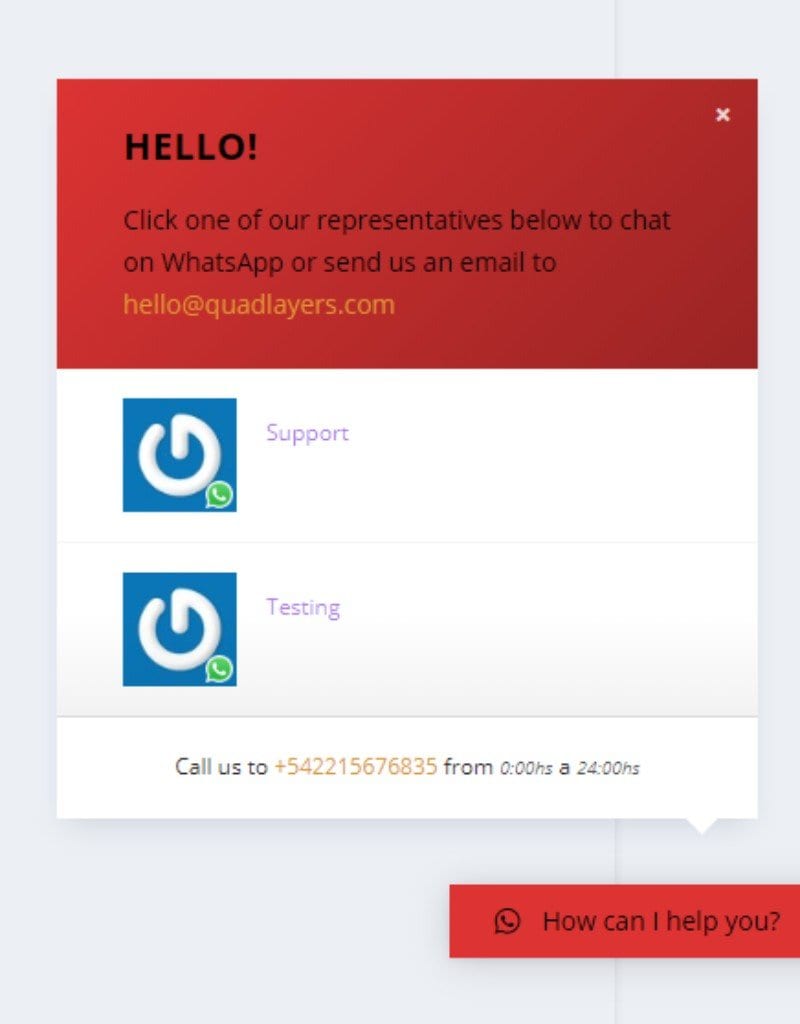
- Change the background and text colors to match your site’s color scheme.
- Change the colors of links, messages, labels, and usernames. (Premium)
Those are the plugin’s main features. Now let’s look at how to use it.
How to Use WhatsApp Chat WP?
After you install and activate the plugin, the WhatsApp Chat button is added to your site’s front end. To customize it, open your WordPress dashboard and select WhatsApp Chat from the sidebar.
Open it, and the settings interface will appear.

# Button
Start with the Button section. Here, you can configure the button layout, position, default text, icon, and other options. You’ll also need to enter your WhatsApp phone number in international format. Visitors who click the button will then be redirected to a WhatsApp chat with you.

With the settings shown in the image above, the chat button will appear like this on your site.

# Box
Here, you can enable or disable the contact box. We’ll enable it for this tutorial and add the following header and footer text.
In the Contacts area, you can add members of your support team. Let’s add “Bloke Dude” as an example.

With these settings, the contact box appears like this on your site.
# Display
The Display tab contains the options covered in the “Display Options” section of this review.
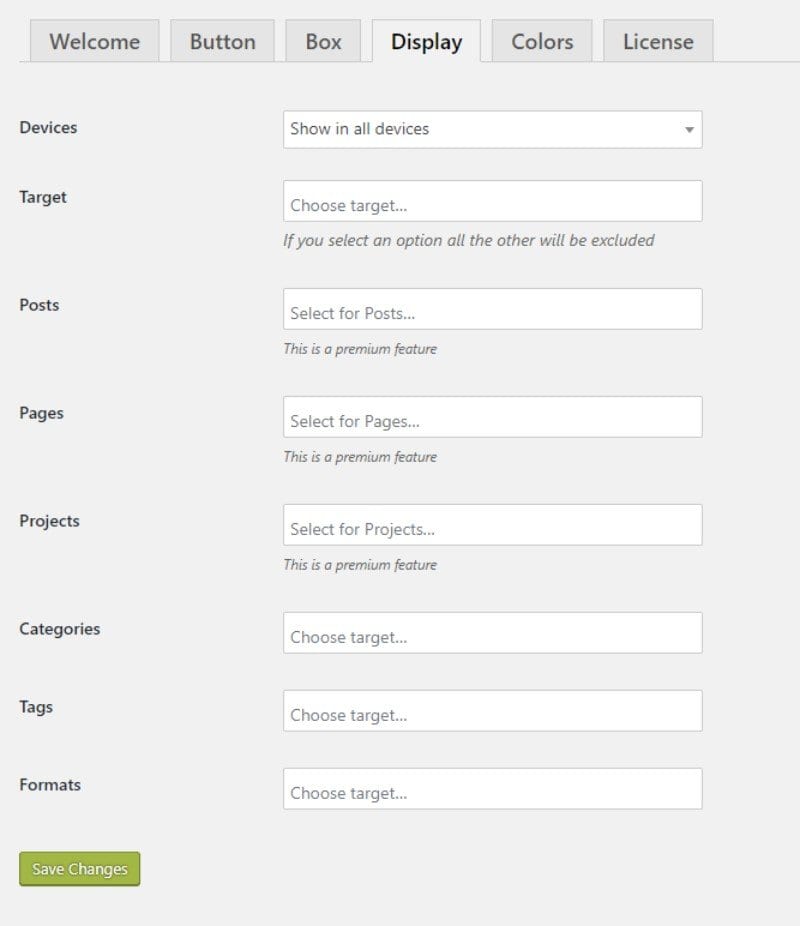
As shown above, you can choose which devices display the chat button and use the page-targeting settings. You can show the WhatsApp box across your website, limit it to a specific post type, or display it on a particular page.
# Colors
The Colors tab lets you customize the colors of the chat button and contact box.
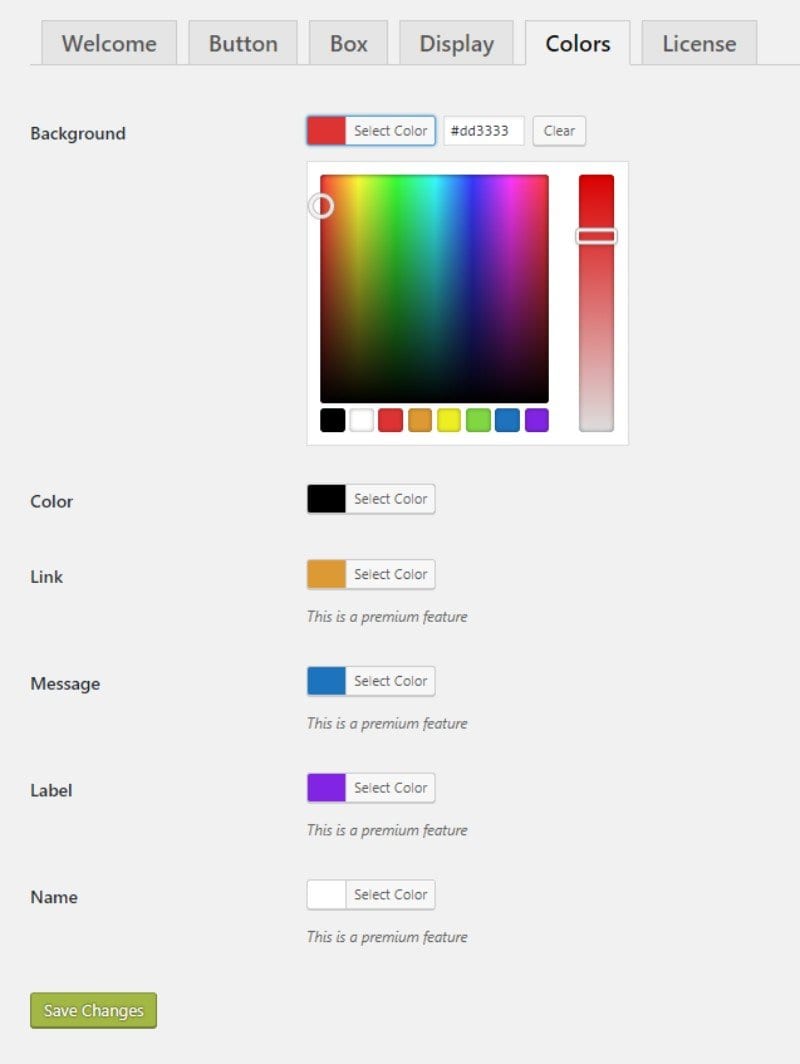
The dedicated color picker makes choosing a color scheme straightforward. The image below shows how the selected colors appear in the chat interface.
WhatsApp Chat WP – Pricing
The plugin is available in both free and premium versions.
The free version is available from the WordPress.org plugin repository. For the premium version, visit the plugin’s official site to review the currently available plans and site-license options.
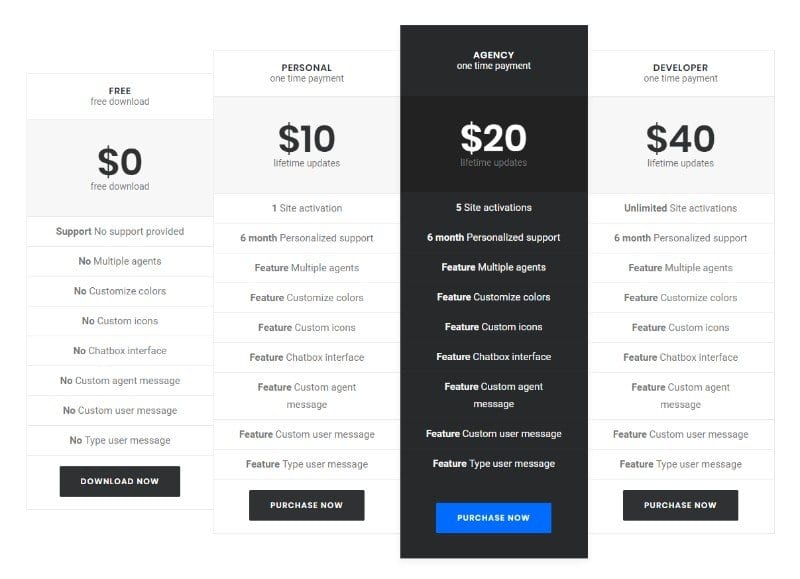
The pricing screenshot above is from an earlier version of the product, so the prices, plans, license limits, and support terms may no longer be current. Check the official site for up-to-date pricing, features, renewal details, and support coverage before purchasing.
Summary – WhatsApp Chat Plugin
That wraps up our review and guide to the WhatsApp Chat WordPress plugin.
As you can see, it provides a practical way to support users and customers through WhatsApp. The main limitation is that it doesn’t embed WhatsApp conversations directly into your WordPress website. Visitors leave your site and open WhatsApp or WhatsApp Web to start a conversation with you or your support team.
If you can look past that limitation, the plugin can help you provide customer support through one of the world’s most widely used messaging platforms. It also makes it easier to stay in touch with customers and create more personal conversations than email alone often allows.
Ultimately, the choice is yours. If directing visitors to WhatsApp suits your support workflow, this plugin is worth considering. Test the button on both mobile and desktop devices, confirm that your number uses the correct international format, and review WhatsApp’s current business, privacy, and messaging policies before deploying it. If you use the plugin, share your experience in the comments below.
